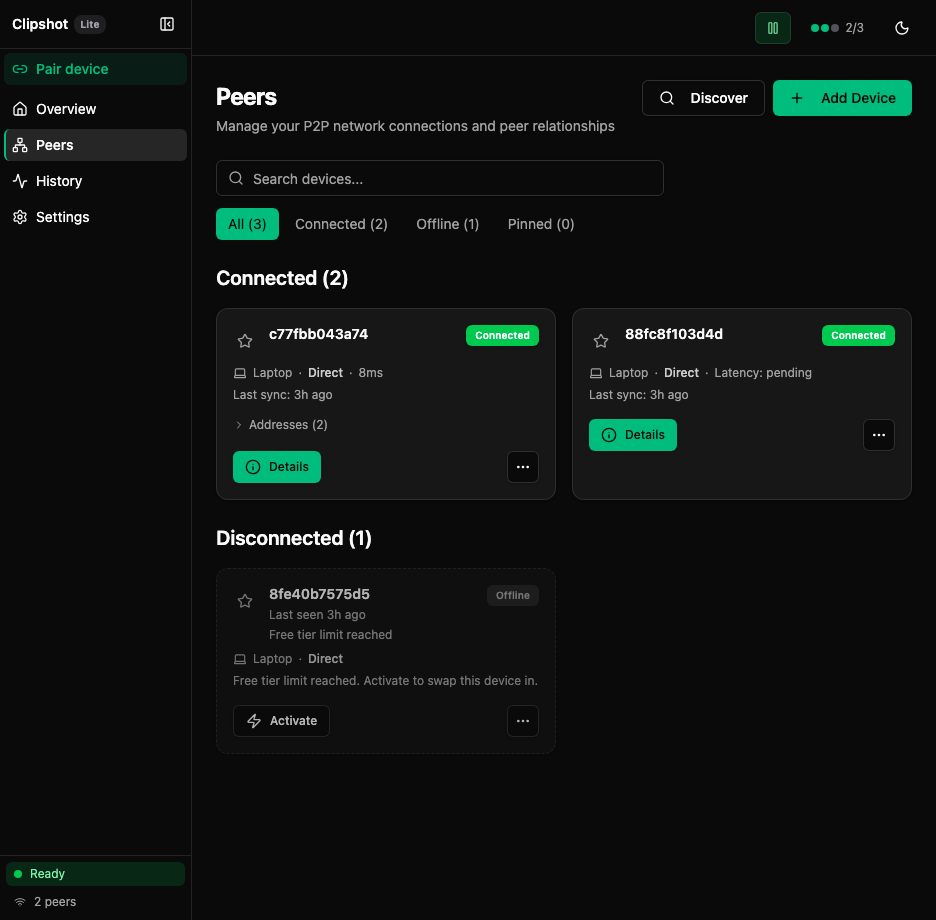
The Peers page is where you add, view, pin, reconnect, disconnect, and remove devices.
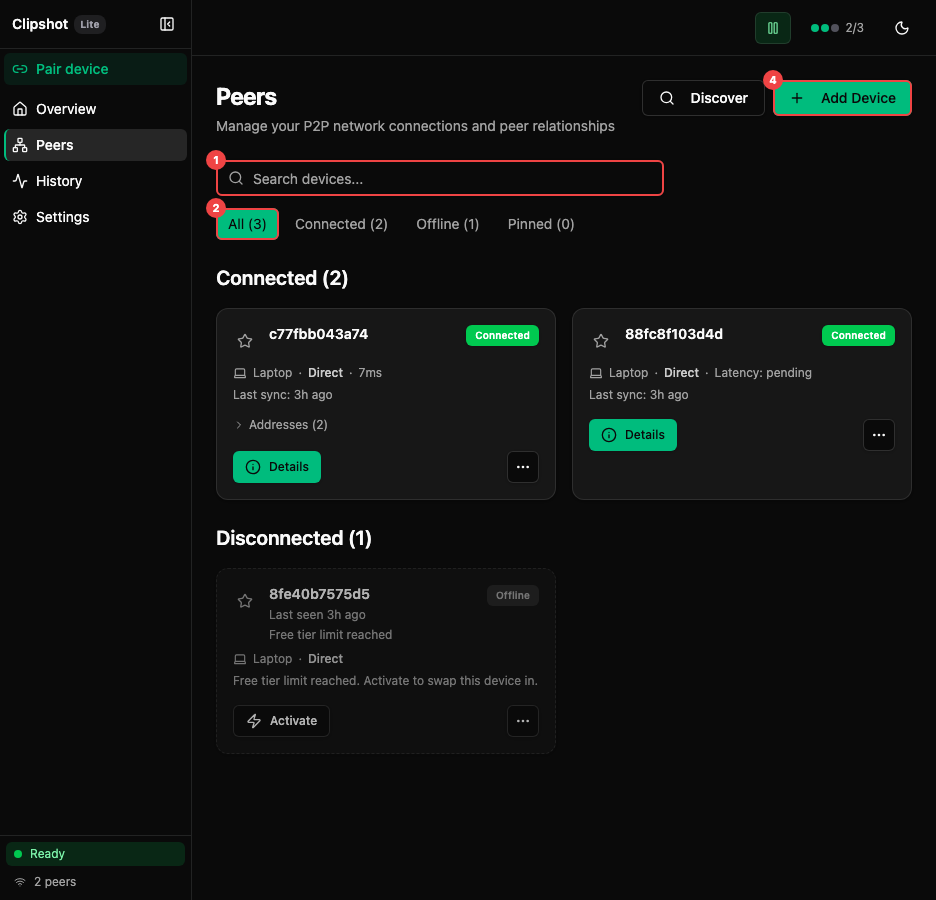
Note: both screenshots show the same session: 5 known devices with filter tabs All (5), Connected (3), Offline (2), Pinned (0). A Connected (3) section lists, in capture order, grep-app, ip-10-172-112-45.us-west-2.compute.internal, and it.local — each showing a QUIC transport label, a latency reading, a
Last sync: …line, a Details button, and an overflow menu;peers-annotated.pngis the same session and shows the same three cards in the same order, with the last-sync values a minute further along because it was captured moments later. The sidebar footer accordingly reads Ready / 3 peers. Latency and last-sync values change on every capture — treat them as illustrative. A Disconnected (2) section heading starts below them but is cut off at the bottom of the viewport, so no offline card is visible in this capture — the offline-card fields described below (Reconnect button, Last seen … / Added to network text) are documented from the UI, not from this screenshot.
The annotated view highlights: ① Search devices… field — search by name or node ID. ② Filter buttons with counts: All, Connected, Offline, Pinned. ③ A device card showing name, status, transport, latency, and actions. ④ Discover and Add Device buttons — both open the pairing dialog.
If you have no devices yet, the page shows an empty state card with:
- Add Device
- Scan LAN
- current Hub status: Connected or Disconnected
- tip text recommending a pair code
Search & Filters
At the top of the page you get:
- a Search devices… field
- filter buttons with counts:
- All
- Connected
- Offline
- Pinned
Search matches:
- device name
- node ID prefix
Peer cards are grouped into sections:
- Pinned
- Connected
- Disconnected
Device Card
Each card represents one device.
Visible fields and indicators:
- pin star in the top-left corner
- device name
- Connected or Offline badge
- for offline devices, optional Last seen … text (when reachability data is available) or Added to network (when no reachability data exists)
- optional offline reason such as:
- Remote device limit reached
- Free tier limit reached
- device type:
- Desktop
- Server
- WSL
- or the raw
device_typestring with an initial capital
All device types use a generic monitor icon. There is no distinct laptop icon.
- transport label: always shows QUIC
- latency, or Latency: pending while measuring
- activity line such as:
- Connected, no sync yet
- Last sync: 3m ago
- Added to network
- for limited devices, a note:
- Free tier limit reached. Activate to swap this device in.
If the device is transferring something right now, the card also shows:
- a small progress bar
- text like Sending 2.1MB / 10.0MB or Receiving …
If Clipshot knows multiple addresses for the same device, the card can expand to show an address list.
Buttons and actions:
- Details for connected devices
- Reconnect for normal offline devices
- Activate for devices blocked by the Lite plan limit
- overflow menu with:
- Details for offline devices
- Disconnect for connected devices
- Remove for all devices
Important:
- Disconnect and Remove use a two-step confirmation in the menu: first click changes the item to Confirm? for a few seconds.
- Pinning a device moves it into the Pinned section and makes it easy to find later.
Adding a New Device
Use either:
- Discover or + Add Device button on the Peers page
- the sidebar Pair device button
Both open the same Pair dialog.
Pair dialog
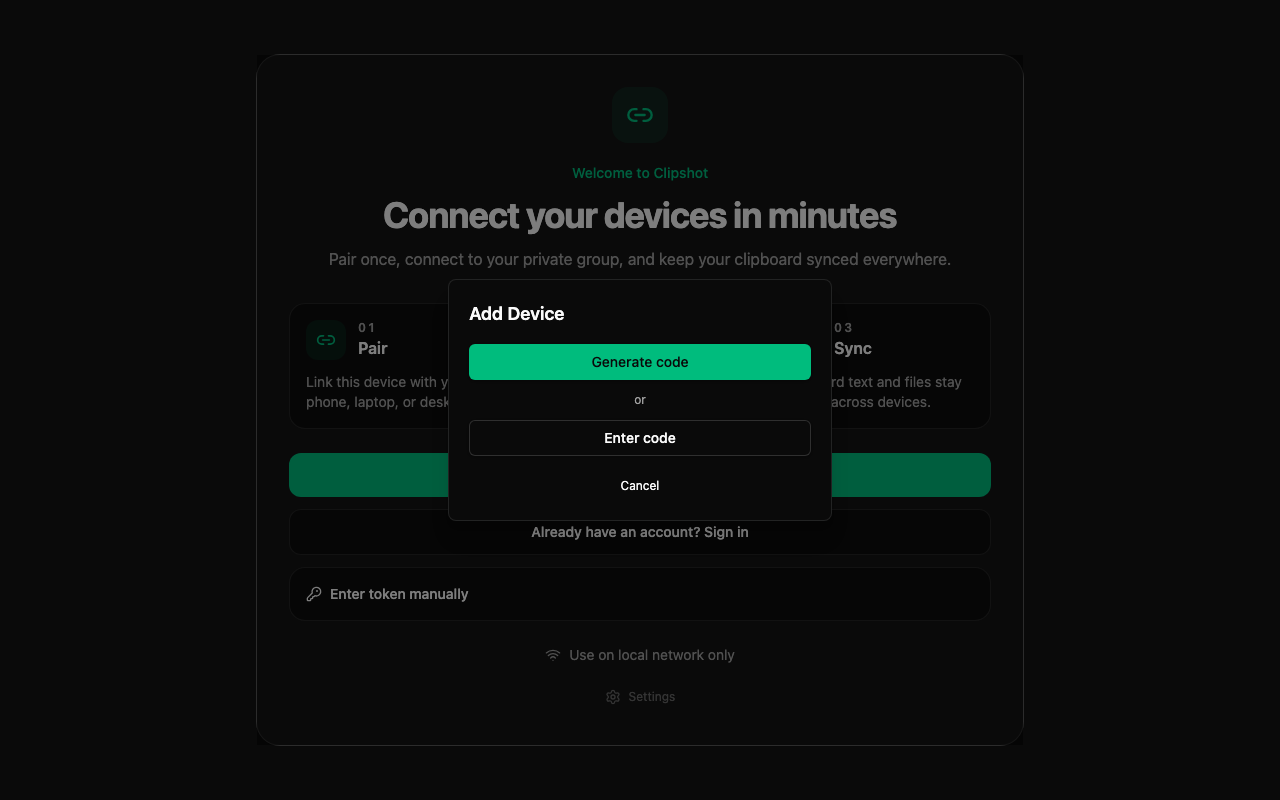
The dialog has two buttons:
- Generate code — creates a 6-digit numeric code valid for 5 minutes. The code is displayed as
NNN NNN(e.g.154 603). While waiting, the dialog shows “Waiting for other device…”. - Enter code — type the 6-digit code from another device and click Join.
After both devices exchange codes they perform a Diffie-Hellman key exchange and each show 4 confirmation digits. Compare the digits out-of-band (say them aloud, type them in chat, etc.):
- Digits match → click Yes, they match on both devices. Devices are now connected. ✓
- Digits differ → click No and start over. Mismatched digits indicate the connection may have been intercepted.
The pair flow works across the internet (via Portal) and on local networks (via mDNS), automatically choosing the fastest available transport. No account required.
Use the pair code flow when:
- adding your own laptop or companion machine
- installing Clipshot on a remote server
- you want the simplest and most secure flow
Device Details
Opening Details shows a dialog with peer information.
View mode shows:
- device name
- Connected or Offline badge
- device type, when known
- transport:
- Direct • QUIC
- TCP
- or
—
- latency
- node ID with copy button
- last sync time
- collapsible Addresses section
Click Edit to change:
- device name
- saved addresses
- auth code
Then click Save or Cancel.
Removing a Device
To remove a device:
- Open the device card menu.
- Click Remove.
- Click Confirm? before the confirmation times out.
To temporarily stop a connected device without deleting it:
- Open the menu.
- Click Disconnect.
- Click Confirm?.