Onboarding overlay
On first launch after pairing (when at least one peer is connected), an Onboarding Overlay appears over the main content. It is a 4-step walkthrough wizard stored in localStorage (clipshot_onboarding_seen).
The four steps are:
- Your devices are connected! — explains that clipboard sync is automatic for text, images, and files up to 10 MB.
- How syncing works — describes the copy → detect → send flow, the live progress header, and the
~/.clipshot/sync/storage directory. - Paste image OR file path — shows a table comparing Cmd+V (normal paste) vs Cmd+B (paste file path as text). On Windows/Linux the modifier is Ctrl instead of Cmd.
- Find everything in History — highlights the History page with its filter, search, copy-back, and retry features.
Navigation: Back / Next buttons at the bottom, a Skip link on the first step, and Got it on the last. Four dots indicate progress.
Once dismissed (via Skip or Got it), the overlay does not appear again on that device.
Note: the current
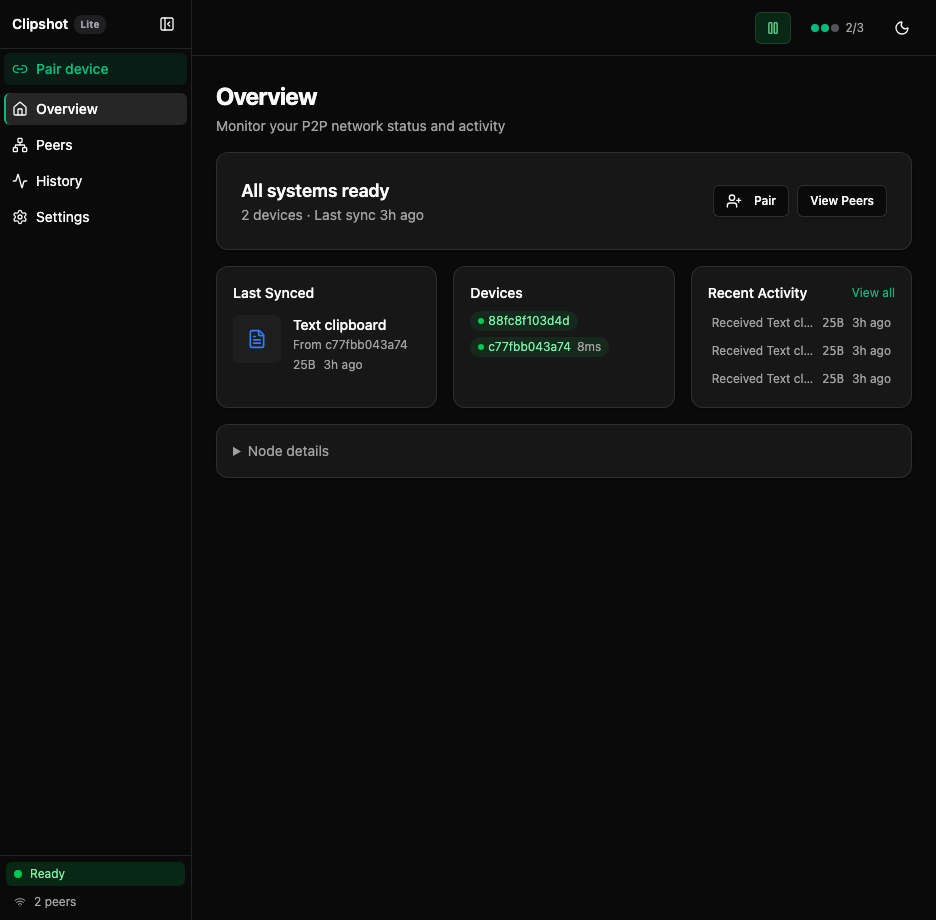
overview.pngscreenshot shows the normal Overview page (no onboarding overlay): the All systems ready hero with3 devices · Last sync 2m agoand Pair / View Peers buttons, plus the Last Synced, Devices, and Recent Activity cards and the collapsible Node details section. Device counts and relative times change on every capture — treat them as illustrative.
After pairing, the main window has:
- a left sidebar with Overview, Peers, History, Settings
- a Pair device button in the sidebar
- a Send File button in the sidebar (Pro feature)
- a Lite or Pro badge near the app name
- a version badge (e.g.
v0.8.70) next to the plan badge - a top bar with sync status, peer count, and theme toggle
The sidebar can be collapsed and expanded.
Sidebar
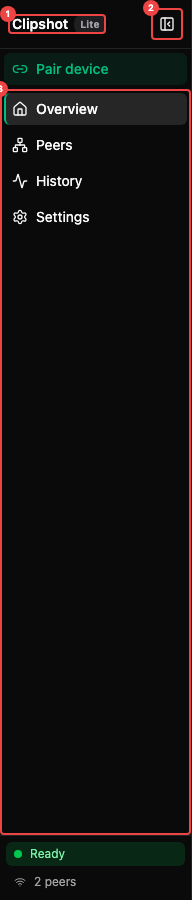
The sidebar callouts show: ① App name, plan badge (Pro, Lite, or Local), and version badge (e.g. v0.8.70), with a collapse/expand button in the top-right corner. ② Pair device button — opens the Add Device dialog from any page. ③ Navigation links: Overview, Peers, History, Settings. The active page is highlighted with a background fill.
Note: the plain
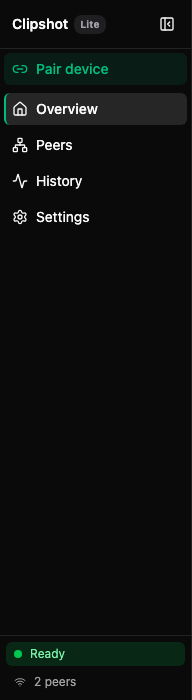
sidebar.pngscreenshot is outdated — it shows navigation links only and is missing the Pair device button, Send File button, version badge, and footer status bar. It is still published while a retake is pending, so read it as a partial view of the nav links only. The annotated screenshot (sidebar-annotated.png) shows the current sidebar layout, including the Pair device and Send File buttons, the Pro badge, the version badge (V0.8.69in that capture — one release behind the shipped 0.8.70), and the footer status bar (Ready / 3 peers).
At the bottom, the sidebar footer shows the current sync state label and peer count.
Header Bar


The header bar shows: ① Sync toggle button — an icon-only button that pauses or resumes sync. Its background color reflects the current sync state (green for ready, blue for sending, amber for no peers, grey for paused). ② Refresh button — a circular-arrows icon button labelled Reconnect all peers; one click force-reconnects every dropped peer at once (reconnect_all_peers → POST /api/peers/reconnect_all). The icon spins and the button is disabled while the call is in flight. ③ Peer count badge — colored dots and a connected/total count such as 3/5. Each dot represents a peer: green (emerald) for connected, grey for disconnected. Up to 10 dots are shown; click to expand a popover with peer names and latency. ④ Theme toggle — switches between light and dark mode.
The annotated header-bar image is one revision behind this list: it carries only three callouts and does not yet mark the refresh button. Map them onto the list above as ① sync toggle → ①, ② peer count badge → ③, and ③ theme toggle → ④; the refresh button (②) has no callout in the current capture.
Note: the text sync status label (Ready, Sending, Receiving, No peers, or Paused) appears in the sidebar footer, not in the header bar.
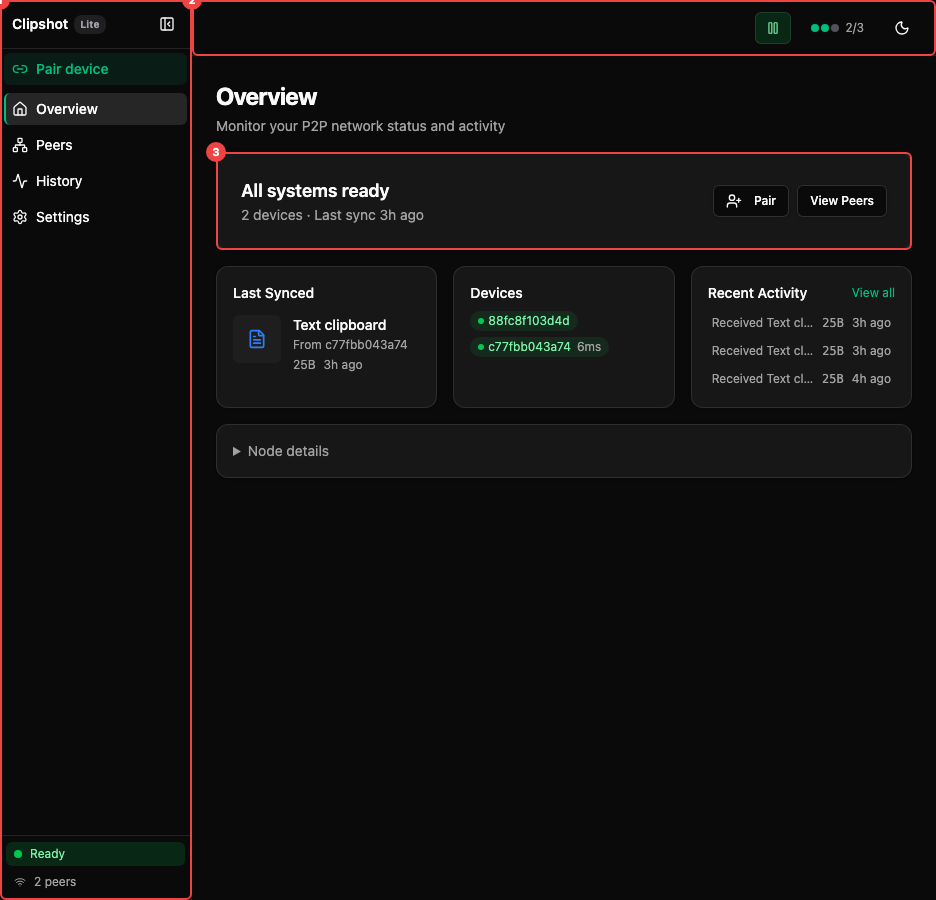
The annotated view highlights: ① Status hero card — your network health at a glance. ② Last Synced card. ③ Devices card. ④ Recent Activity card. At the bottom is a collapsible Node details section.
Note: the annotated view shows the full window, including the sidebar (version badge
V0.8.69— one release behind the shipped 0.8.70). The five main sections are the hero card, last synced, devices, recent activity, and node details.
Status hero
The large top card summarizes the current state.
What you see:
- headline:
- All systems ready when at least one device is connected
- No peers connected when nothing is online
- summary line with:
- connected device count
- last sync time, if available
- action buttons:
- Pair
- View Peers when at least one device is connected
Extra alerts inside the card:
- Sync is paused banner with a Resume button
- a device-limit warning if your current plan does not allow more devices
Last synced card
This card shows your most recent successful transfer.
It includes:
- an icon for image, text, or file
- the file or content name
- whether it was Sent to or From a device
- size, when known
- relative time such as
just nowor5m ago
If nothing has synced yet, it says: Copy something to start syncing.
Note: the current
overview.pngshows the populated state — a received text entry (text_20260807_64b48f5da20405e2.txt), From it.local,129B,2m ago. This is the same entry thathistory.pngshows in its TODAY group. Names, sizes, and relative times change on every capture; treat them as illustrative.
Clicking the card opens History.
Devices card
This card shows currently connected devices as compact badges.
Each badge can show:
- green online dot
- device name
- latency in milliseconds, when available
If there are more than six connected devices, the card shows +N more.
If none are connected, it says No devices connected.
Note: the current screenshot shows the populated state — three device badges, each with a green dot, name, and latency (
it.local,ip-10-172-112-45.us-west-2.compute.int…,grep-app). Device names, counts, and latency values change on every capture; treat them as illustrative. The empty state (No devices connected) appears only when nothing is online.
Clicking the card opens Peers.
Activity card
This card shows the latest activity entries.
What it includes:
- up to 3 recent items
- failures first, so problems are easier to notice
- transfer lines such as:
Sent photo.png to Work MacReceived notes.txt from Server
- peer events such as:
Laptop connectedDesktop disconnected
- file size when known
- relative time (
4h ago), or a date such as8/2/2026for entries older than a day - View all link to open History
Only the event types Clipshot knows how to phrase get humanised text: peer_added / peer_connected render as <peer> connected, peer_removed / peer_disconnected as <peer> disconnected, and sync_sent / sync_received as Sent … / Received …. Any other event type falls through to its raw event_type string (OverviewPage.tsx, getEventLine). Failed events (any event_type containing failed) are sorted to the top and rendered in red.
Note: the current
overview.pngdoes not illustrate that fall-through case. All three rows in its Recent Activity card are humanisedReceived text_20260807_…transfer lines (129B/2m ago,4B/17m ago,18B/31m ago), and there is no failed row, so neither the raw-event_typerendering nor the red failure styling is visible in this capture — both are documented from source (OverviewPage.tsx,getEventLine), not from the screenshot.
Node details
At the bottom of the page there is a collapsible Node details section.
It shows, using these labels:
- Node: — node name
- Uptime:
- Port: — or
N/Awhen unknown - Peer Relay: — peer relay URL, only when a peer relay is active
- ID: — the node ID, in monospace, with a copy button next to it