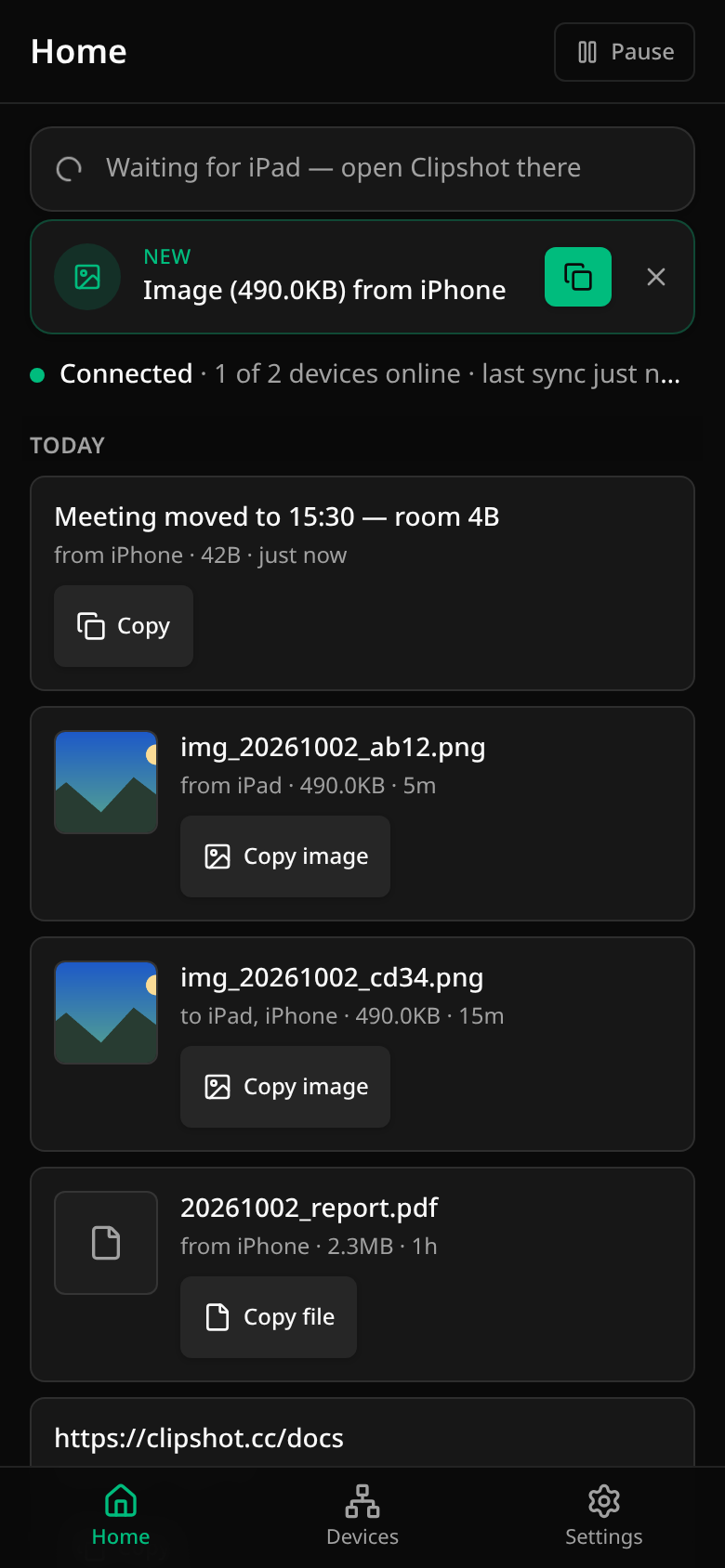
Home
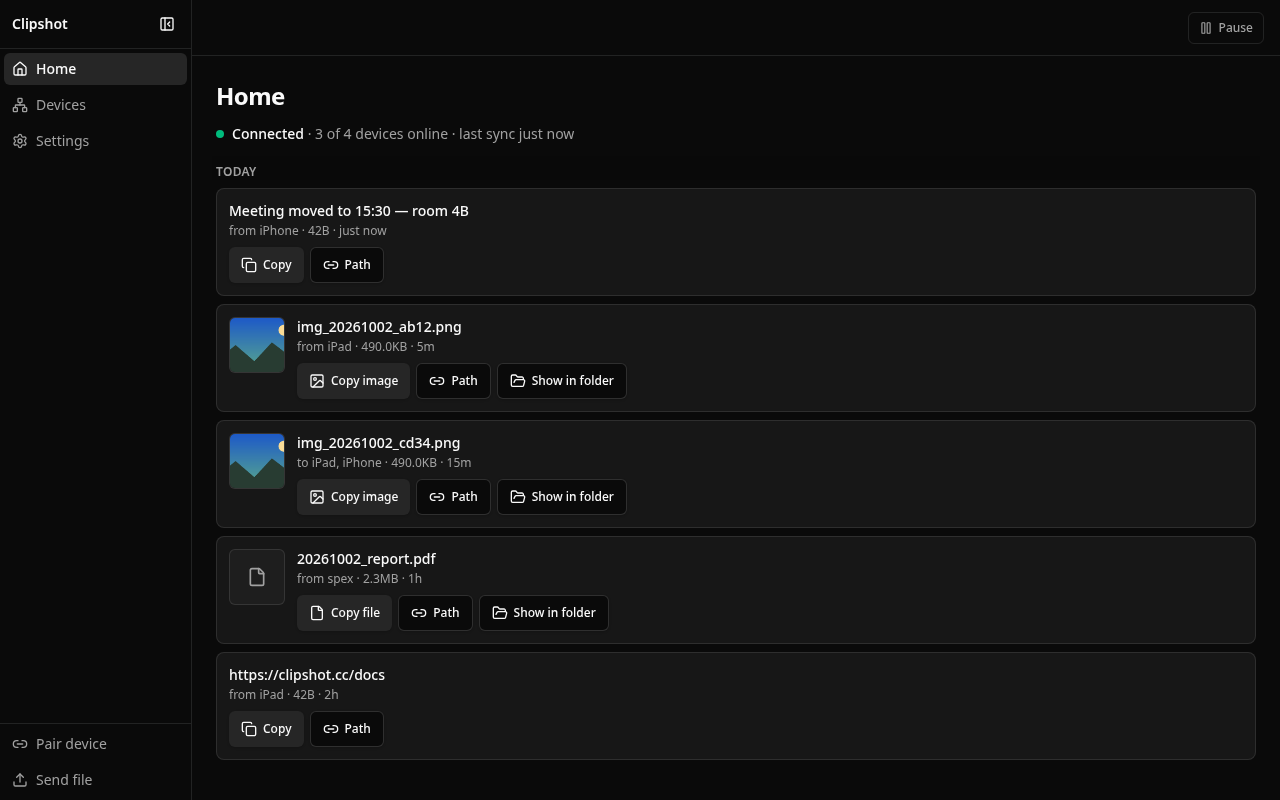
The two text rows in this screenshot carry a Path button. That is an artefact of the fixture the shot was taken with, not the product: a text never offers Path — only a picture or a file does, and only while the group has a computer. The table under What you can do with an item is the behaviour.
The status line
At the top, one line says how this device is connected:
- Connected ·
3 of 4 devices online·last sync 2m ago - Connecting to your devices… — right after start; it usually takes a few seconds
- Your devices are offline — none of them is reachable right now
- No devices yet — with a Pair a device button
Tap the line to open Devices. This is the only place the connection status is shown — there is no second counter in the header.
When sync is paused, a strip under the line says so and offers Resume. When your plan’s device limit is reached, a strip says which limit.
The feed
Everything synced — copied text, screenshots, pictures, files — is one list, newest first, grouped by day. Each item is one row:
- text shows the text itself;
- a picture shows a thumbnail;
- a file shows its name.
Under the title: where it came from or where it went (from iPad, to iPad, iPhone), its size and how long ago. Something you sent to several devices is one row that names them all.
Tap a row to see the item: the full picture, or the whole text (you can select part of it).
What you can do with an item
| Item | Phone (iPhone, iPad, Android) | Desktop |
|---|---|---|
| Text | Copy | Copy |
| Picture | Copy image — the picture itself; Path — its path in the group | Copy image; Path; Show in folder |
| File | Copy file where this phone’s clipboard can hold one (Android); Path (on iOS the file is in Files → Clipshot → Received) | Copy file; Path; Show in folder |
Copy is not a phone-only act. Whether a picture or a file can go on this device’s clipboard is decided by the daemon per item — its acts (item, path) in History and in every offer, from the same table the copy itself uses — and the UI only words them; it is not a check for “is this a phone”. A desktop whose clipboard holds a file reference (which is how a picture is copied there too) shows Copy image / Copy file exactly like a phone does; a desktop whose clipboard cannot hold one shows only Path and Show in folder. On a phone a picture is always copyable, a file only where the platform clipboard holds files.
Path copies ~/.clipshot/sync/<name> — the same path on every device of the group, so you can paste it into a terminal or a chat on any computer and it points at the file there. It appears only while the group has a computer to paste it on (group_has_host); in a group of phones only there is no Path.
Show in folder needs a file manager, so it is the desktop only.
A failed send has a red edge, the reason, and Retry.
Search appears when the list is long; N failed appears only when something failed and shows just those.
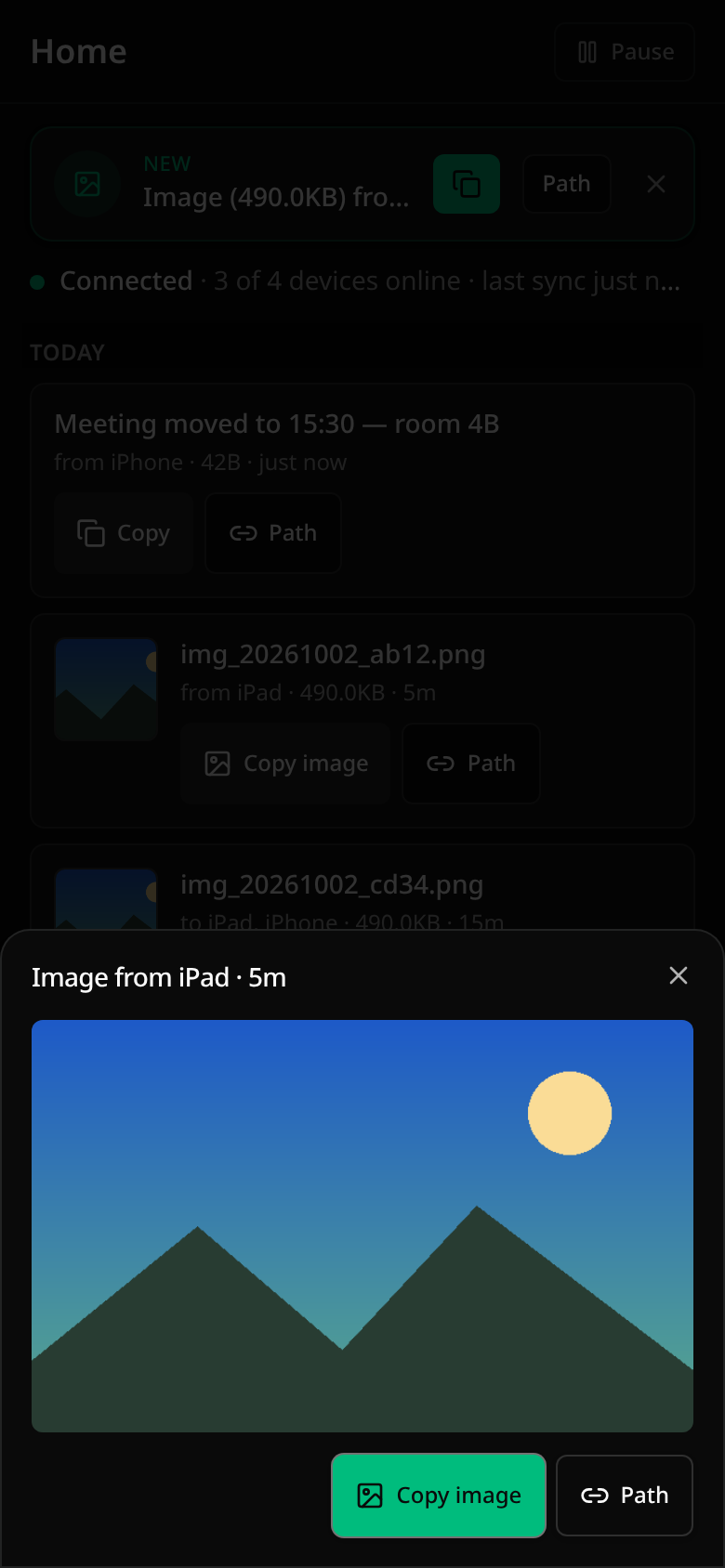
On a phone: the newest arrival
On iPhone, iPad and Android, the newest item that arrived from another device is offered at the top of Home with one Copy (a picture: Copy image). Nothing is put on the phone’s clipboard without your tap — or without you opening Clipshot, which takes the newest arrival if it is newer than what you copied yourself. Next to a picture or a file the offer also has Path, while the group has a computer.
An item this phone knows about but has not received yet — announced by a notice in a group of phones only — stands above it as a waiting row, «Waiting for iPad — open Clipshot there», with no act; it turns into an ordinary offer when the bytes land (see Phones only).