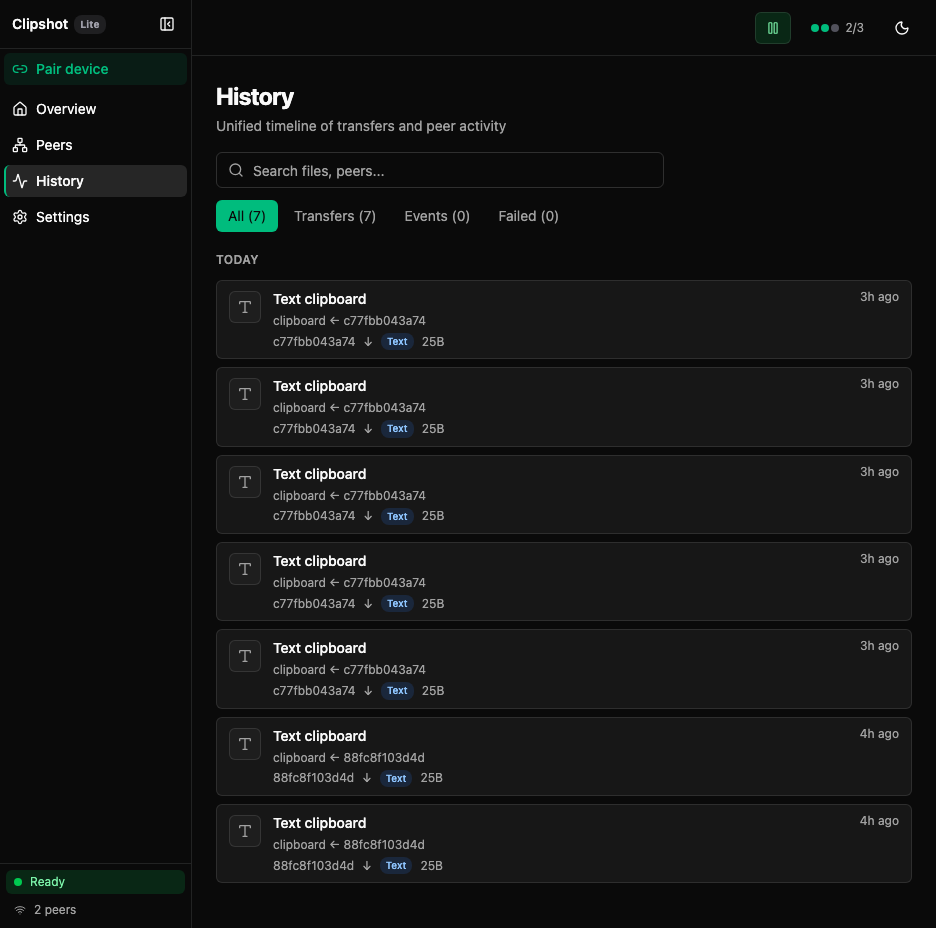
History is a unified timeline of transfers and peer activity.
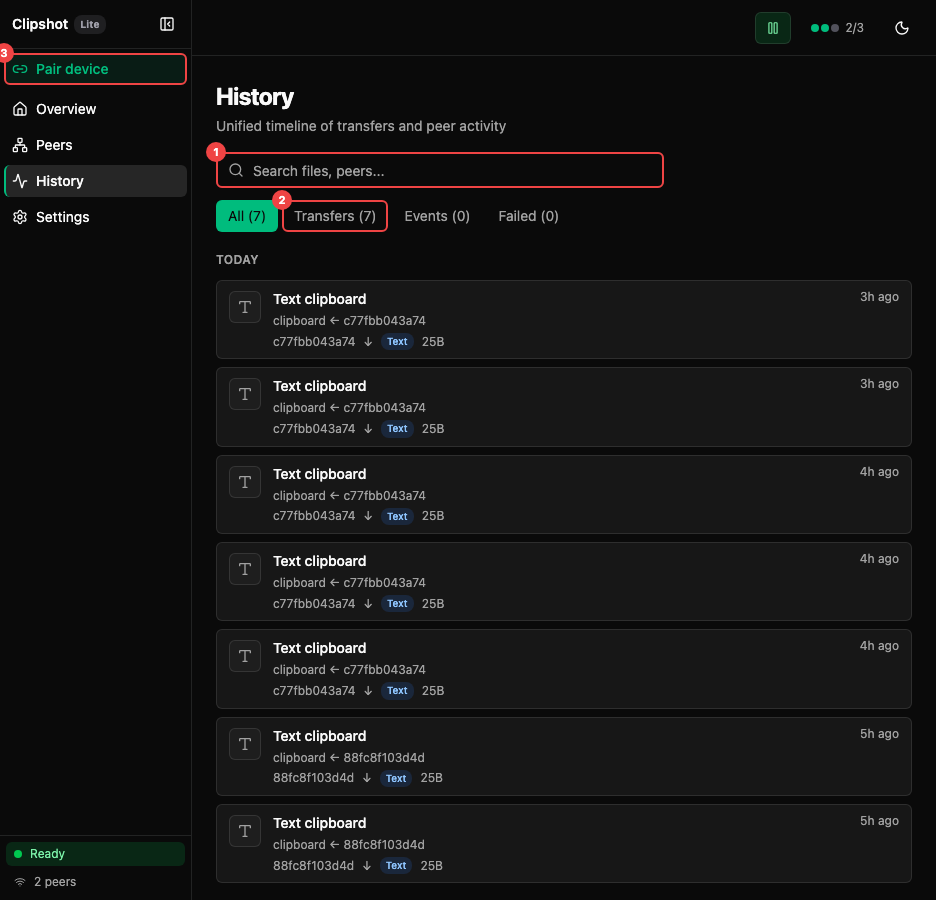
The annotated view highlights: ① Search files, peers… field — search by filename, peer name, or content type. ② Filter chips: All, Transfers, Events, Failed with counts. ③ A transfer row showing file name, peer, direction, type badge, size, and time.
Note: both History screenshots show a near-empty timeline from a fresh session — filter chips read All (1) / Transfers (1) / Events (0) / Failed (0) and a single TODAY group holds one received text entry (
text_20260807_64b48f5da20405e2.txt, fromit.local,Textbadge,129B,2m ago) with its sync path (~/.clipshot/sync/text_20260807_64b48f5da20405e2.txt) and copy/open-folder icons. BecauseEvents (0)here, the connect/disconnect Event Row layout and the failed/in-progress row states described below are documented from the UI, not from this capture. This capture is from the same session asoverview.png: that page’s Last Synced card holds the identicaltext_20260807_64b48f5da20405e2.txt/From it.local/129B/2m agoentry (the two pages were captured moments apart).Events (0)is correct: the History timeline admits only peer connect/disconnect events —mergeTimelinefilters activity throughisPeerEventType, which matches justpeer_added/peer_connected/peer_removed/peer_disconnected(web/src/lib/historyUtils.ts). Other event types such asconnection_failedappear in Recent Activity but never in History. This session’s Recent Activity card happens to contain no such event, so the filtering is documented from source rather than illustrated by the two captures.
Search
The search box lets you search by:
- filename
- peer name
- content type
Filters: All / Transfers / Events / Failed
Use the filter row to switch between:
- All — everything
- Transfers — sent and received items
- Events — connect and disconnect events
- Failed — only failed transfers
Each filter shows its current count.
Timeline
The timeline is grouped by date with sticky date headers, so the current day label stays visible as you scroll.
If there is no history yet, the page explains that transfers and events will appear automatically.
Transfer Row
Every transfer row can show:
- image thumbnail preview, when available
- file or content icon for non-images
- file name or content name
- text preview for text clipboard entries
- peer name
- sent/received arrow
- content badge such as Image, Text, or File
- size
- time of day
Actions:
- Copy path — copies the file path to clipboard (clipboard icon)
- Open folder — opens the containing directory (folder icon)
- Retry transfer — available on failed items only (not shown when all transfers succeeded)
Failed transfers:
- show a red left border
- show a short error summary
- can expand to reveal the full error, peer details, and address
In-progress transfers:
- show a blue left border
- show a progress bar
- show transferred size, total size, and percent
- can also show chunk progress, speed, and ETA
Event Row
Event rows show peer connection changes.
Each row includes:
- connected or disconnected icon
- text like
Laptop connectedorServer disconnected - optional secondary peer details
- time of day